Stamp Community Family of Web Sites
Thousands of stamps, consistently graded, competitively priced and hundreds of in-depth blog posts to read


Stamp Community Forum
 
Username:
Password:
Save Password
Forgot your Password?

This page may contain links that result in small commissions to keep this free site up and running.

Welcome Guest! Registering and/or logging in will remove the anchor (bottom) ads. It's Free!

Tutorial Isolating Cancels - Third Part Added

Next Page    
 
To participate in the forum you must log in or register.
Author Previous TopicReplies: 26 / Views: 3,037Next Topic
Page: of 2
Pillar Of The Community
United States
2547 Posts
Posted 04/23/2011   2:09 pm  Show Profile Bookmark this topic Add Russ to your friends list Get a Link to this Message
There are numerous programs that can be used for enhancing and isolating cancels. I use GIMP and will be using screen shots from that software. GIMP can be downloaded at
http://www.gimp.org

The process is
Scanning the cover
Processing the image through color decomposition
Selecting the best monochromatic image for further processing
Adjusting brightness and contrast and saving the image

The results of this process is dependent on many factors but the 3 biggest variables are stamp color, cover color and cancellation quality. Since the decomposition is either RGB (red, green, blue) or CMYK (cyan, magenta, yellow, black) the quality of the monochrome image varies. Stamps that are predominately one of these colors will produce more easily manipulated images. Colors such as violet or brown are often made of roughly equal amounts on 2 or more of these colors but the decomposition can only work on one.

Colored envelopes or printing in cancel area can also provide some problems.

Light or incomplete cancels are more difficult to work with.

With some combinations the cancel can be isolated with little to no stamp image remaining on others a moderate to strong stamp image may remain.

Scanning has 2 important aspects, resolution and output format.

Resolution should be high enough to provide a sharp image but the higher the resolution the bigger the file size. Additionally I sometime use pixel replacement on some images which is time intensive especially with higher resolution scans. I normally scan at 600-1200dpi.

Since the images are going to be manipulated and save several time the scan output should not be JPG as the image quality tends to degrade after multiple saves. I normally use BMP. After all manipulation is done I then save the image as a JPG.
Send note to Staff
Edited by Russ - 04/25/2011 10:57 pm

Pillar Of The Community
United States
2547 Posts
Posted 04/23/2011   2:10 pm  Show Profile Bookmark this reply Add Russ to your friends list  Get a Link to this Reply
Basic Tutorial
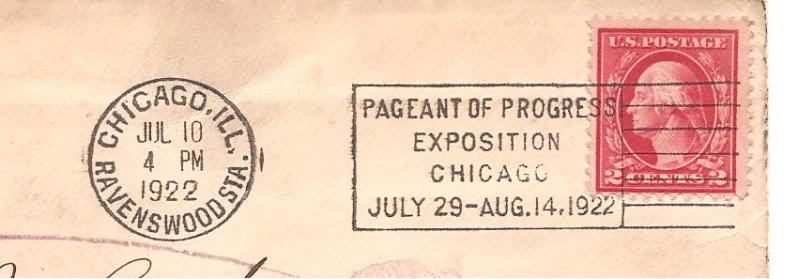
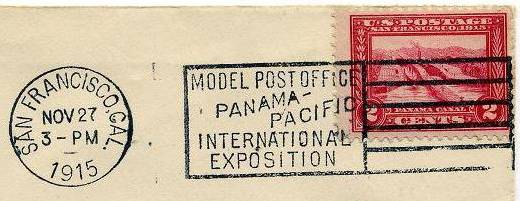
This is the cancel that I will isolate. You can save this image (preferably as BMP) and play at home.


1. Open the image in GIMP
Send note to Staff  Go to Top of Page
Edited by Russ - 04/23/2011 2:14 pm
Pillar Of The Community
United States
2547 Posts
Posted 04/23/2011   2:10 pm  Show Profile Bookmark this reply Add Russ to your friends list  Get a Link to this Reply
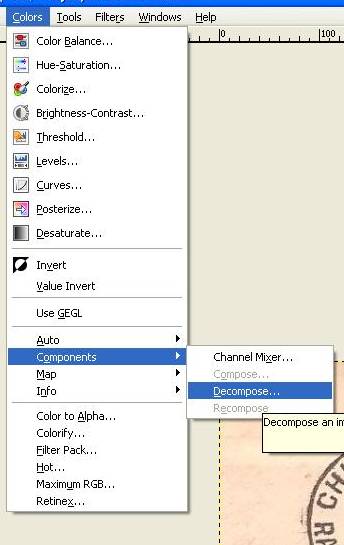
2. Decompose the image into monochrome images [colors-components-decompose]


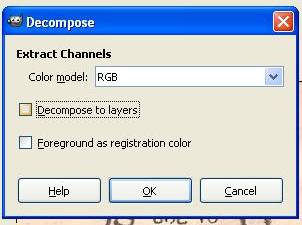
In the decompose box make sure that the color model is RGB and that the decompose to layers is not selected, click OK


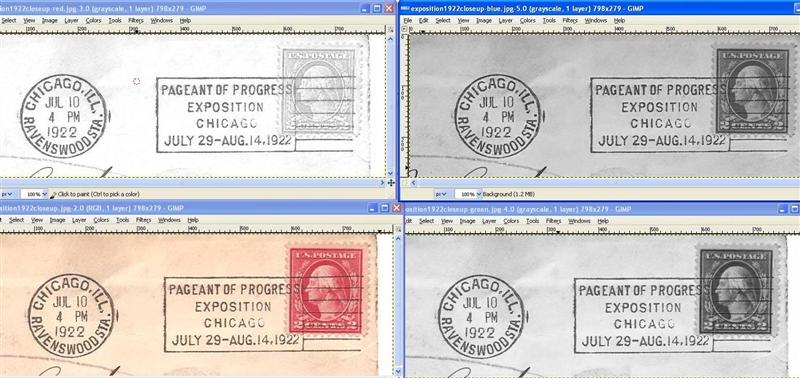
Three monochrome image windows should open. You will notice that stamp is lightest on the red isolation image (upper left). Save this image as a working file and discard the others.

Send note to Staff  Go to Top of Page
Edited by Russ - 04/23/2011 2:18 pm
Pillar Of The Community
United States
2547 Posts
Posted 04/23/2011   2:10 pm  Show Profile Bookmark this reply Add Russ to your friends list  Get a Link to this Reply
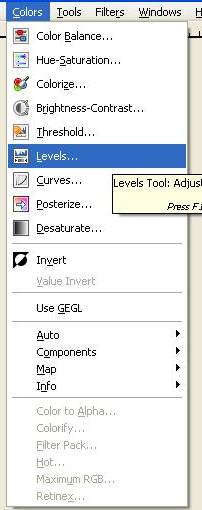
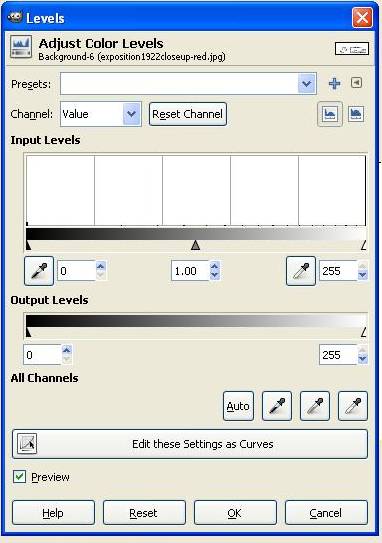
3. Open the brightness/contrast levels window [colors-levels]


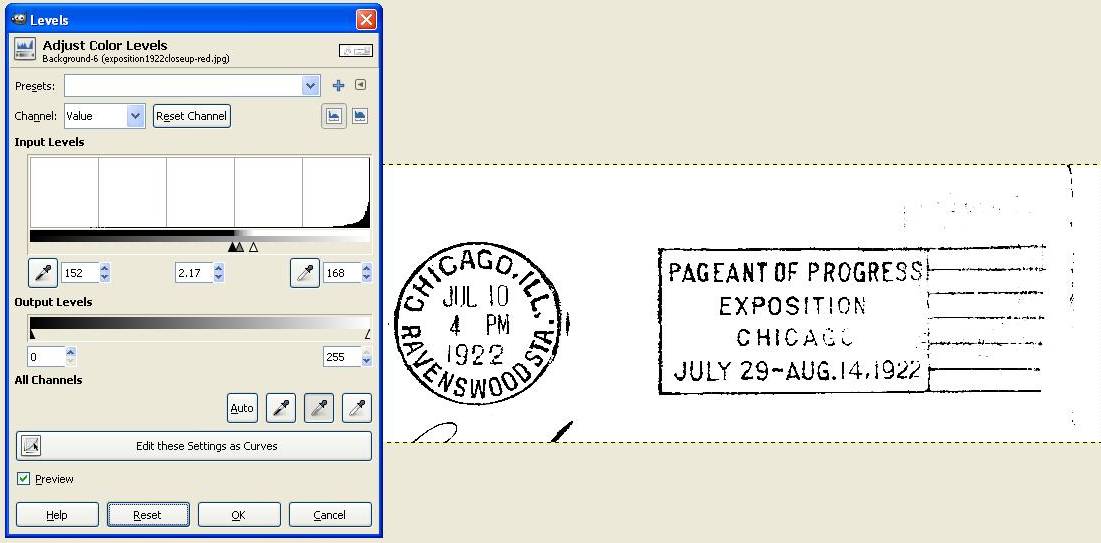
There are 3 triangles under the Input Levels window the left controls black, the right controls white and the center is contrast.


Send note to Staff  Go to Top of Page
Edited by Russ - 04/23/2011 2:21 pm
Pillar Of The Community
United States
2547 Posts
Posted 04/23/2011   2:10 pm  Show Profile Bookmark this reply Add Russ to your friends list  Get a Link to this Reply
Since we are trying to capture the cancel start off by moving the black to the right and the white to the left to get a good image. Move the contrast to balance the output. You will notice that the area of the cancel that is poorly struck tries to fade out. Fine adjust the 3 triangles to get the best image. Click OK


Now save the image as a JPG

In the last tutorial I will show you how to fix the "GO" in "CHICAGO" so that you have a complete cancel.
Send note to Staff  Go to Top of Page
Edited by Russ - 04/23/2011 2:22 pm
Pillar Of The Community
United States
7072 Posts
Posted 04/23/2011   7:43 pm  Show Profile Bookmark this reply Add Cjd to your friends list  Get a Link to this Reply
Super. Is there anything to be gained by playing with the color balance before decomposing, to try to game the split? (I haven't tried it...maybe its not even possible...)

I miss plain old manuals. I once tried to use Gimp to split jpgs into CMYK layers, and didn't find the function. This was very helpful.
Send note to Staff  Go to Top of Page
Pillar Of The Community
Australia
3547 Posts
Posted 04/23/2011   8:03 pm  Show Profile Bookmark this reply Add tonymacg to your friends list  Get a Link to this Reply
Excellent stuff! Thanks
Send note to Staff  Go to Top of Page
Moderator
Learn More...
United States
4788 Posts
Posted 04/23/2011   8:24 pm  Show Profile Bookmark this reply Add kirks to your friends list  Get a Link to this Reply
Great tutorial. Thanks from all of us.
KirkS
Send note to Staff  Go to Top of Page
Pillar Of The Community
United States
2776 Posts
Posted 04/23/2011   8:54 pm  Show Profile Bookmark this reply Add Battlestamps to your friends list  Get a Link to this Reply
Thanks for the information Russ. I'll be sure to make use of this to find out some of those stubborn date and town names hidden within stamps.
Will
Send note to Staff  Go to Top of Page
Pillar Of The Community
United States
2547 Posts
Posted 04/23/2011   9:20 pm  Show Profile Bookmark this reply Add Russ to your friends list  Get a Link to this Reply
Cjd, I have used the hue/saturation in conjunction with the CMYK with good success. I will be doing 3 more tutorials and that will be on the next one.
Will, I have uase this to contrast cancels and also for faint grill images. I will cover some of these techniques in one of the tutorials.
Send note to Staff  Go to Top of Page
Pillar Of The Community
United States
2547 Posts
Posted 04/23/2011   10:41 pm  Show Profile Bookmark this reply Add Russ to your friends list  Get a Link to this Reply
Intermediate Tutorial
This is the cancel that I will isolate. You can save this image (preferably as BMP)


1. Open the image in GIMP

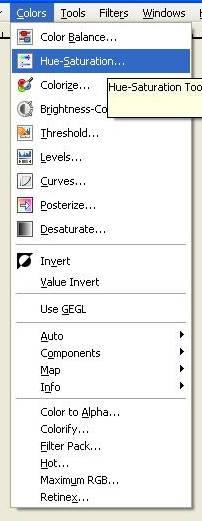
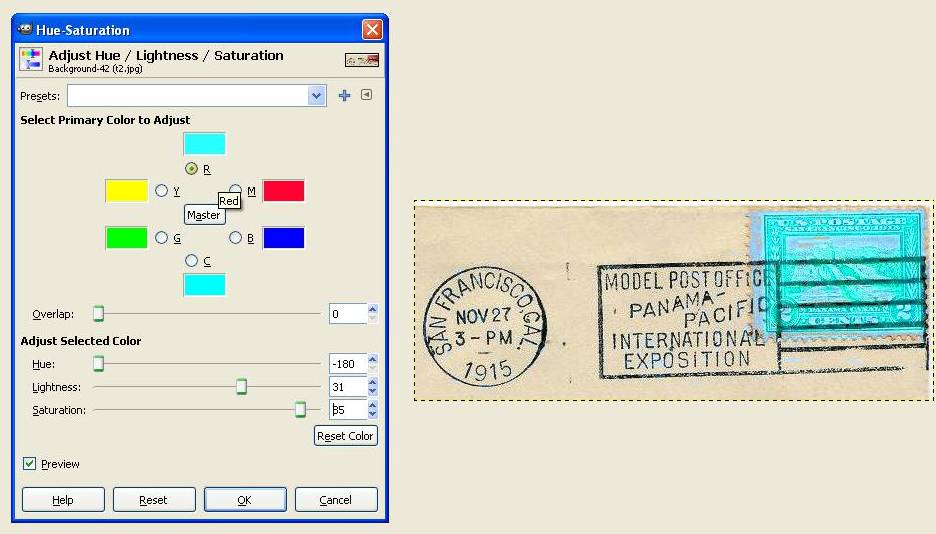
2. Adjust the hue/saturation [colors-hue/saturation]. This is a step that takes some practice to master the relationships.


Since the stamp is red select red in the toolbox and set the 3 sliders as shown. Unfortunately I don't have any magic formula for this part, it is largely trial and error (20% trail and 80% error).
Save as a working file.


Send note to Staff  Go to Top of Page
Pillar Of The Community
United States
2547 Posts
Posted 04/23/2011   10:42 pm  Show Profile Bookmark this reply Add Russ to your friends list  Get a Link to this Reply
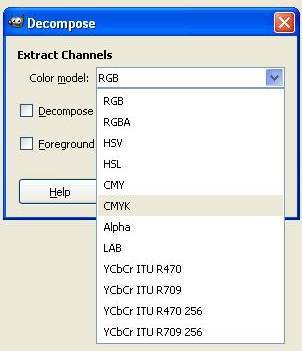
3. Decompose the image into monochrome images [colors-components-decompose]
In the decompose box make sure that the color model is CMYK and that the decompose to layers is not selected, click OK


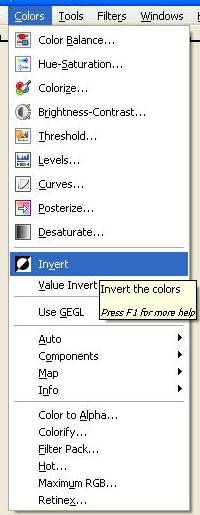
Four monochrome image windows should open. The images will have the color inverted. Select the black layer and discard the rest. Invert the image to normal [colors-invert] Save this image as a working file and discard the others.


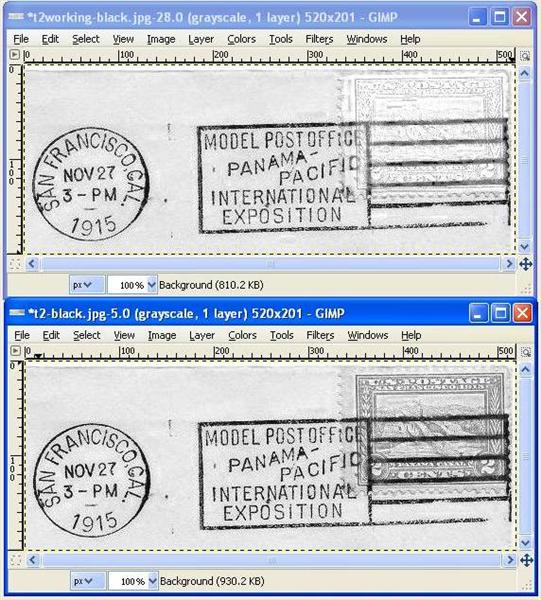
On the images below, the top image is the CMYK black layer after hue-saturation adjustment and the one on the bottom is the CMYK black layer without adjustment.


Send note to Staff  Go to Top of Page
Edited by Russ - 04/23/2011 10:47 pm
Pillar Of The Community
United States
2547 Posts
Posted 04/23/2011   10:42 pm  Show Profile Bookmark this reply Add Russ to your friends list  Get a Link to this Reply
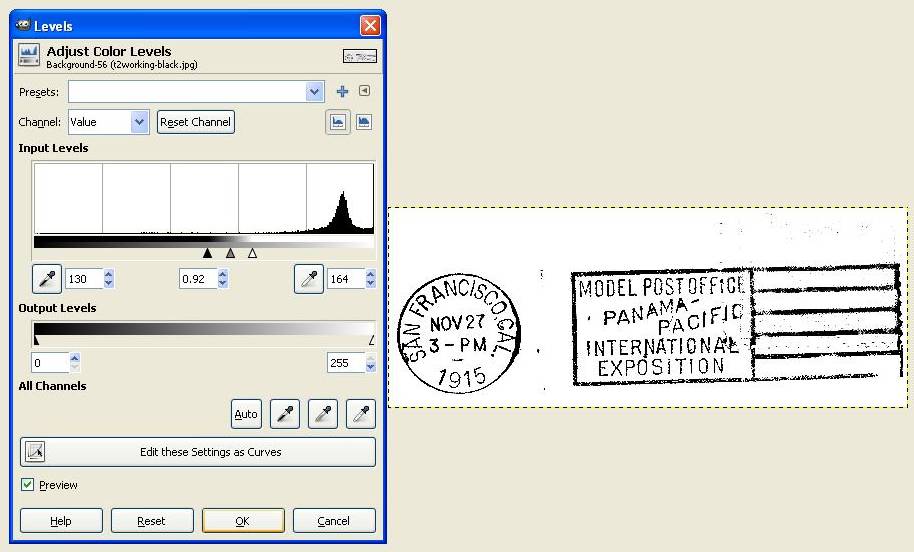
4. Open the brightness/contrast levels window [colors-levels]
Since we are trying to capture the cancel start off by moving the black to the right and the white to the left to get a good image. Move the contrast to balance the output. Fine adjust the 3 triangles to get the best image. Click OK


Now save the image as a JPG

I will post the remaining tutorials within the next couple of days. I hope you find this useful.
Send note to Staff  Go to Top of Page
Edited by Russ - 04/23/2011 10:50 pm
Pillar Of The Community
United States
7072 Posts
Posted 04/24/2011   08:53 am  Show Profile Bookmark this reply Add Cjd to your friends list  Get a Link to this Reply
Well, there you go...thank you very much.
Send note to Staff  Go to Top of Page
Pillar Of The Community
United States
2547 Posts
Posted 04/25/2011   10:26 pm  Show Profile Bookmark this reply Add Russ to your friends list  Get a Link to this Reply
Cork and Steel Cancel Tutorial
Note all the images used in this tutorial are courtesy of Siegel Auctions. Scott Trepel and all the staff at Siegel have produced one of the finest resources for U.S. philatelic research available.

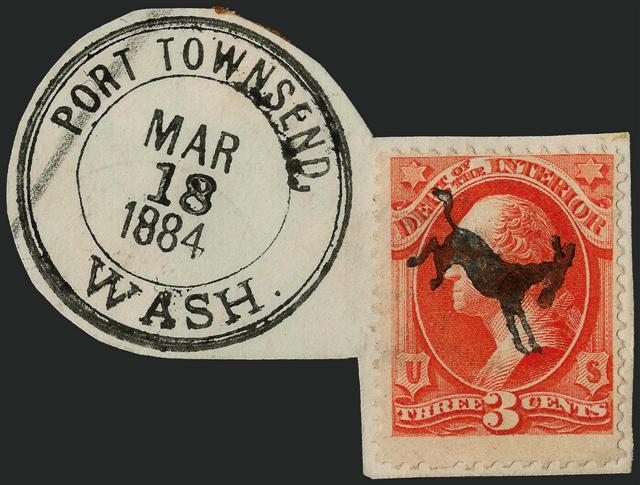
The beautiful Port Townsend, WA kicking mule (steel stamp)


1. Open the image in GIMP

2. Decompose the image into monochrome images [colors-components-decompose]

In the decompose box make sure that the color model is RGB and that the decompose to layers is not selected, click OK. Save the red image as a working file and discard the others.

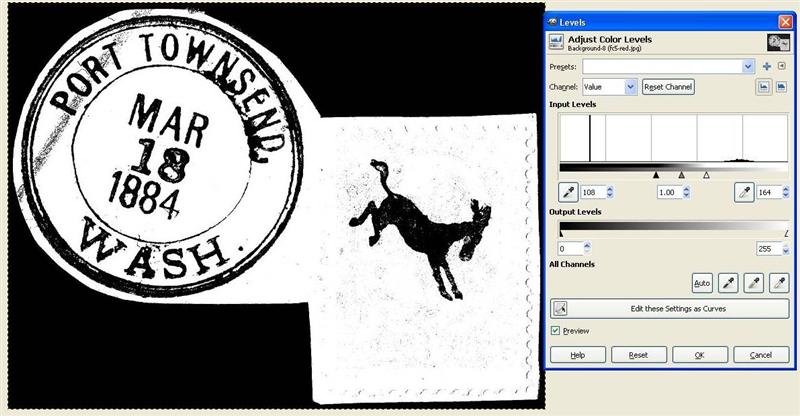
3. Open the brightness/contrast levels window [colors-levels]

Since we are trying to capture the cancel start off by moving the black to the right and the white to the left to get a good image. Move the contrast to balance the output. You will notice that the area of the cancel that is poorly struck tries to fade out. Fine adjust the 3 triangles to get the best image. Click OK


Now save the image as a JPG
Send note to Staff  Go to Top of Page
Pillar Of The Community
United States
2547 Posts
Posted 04/25/2011   10:26 pm  Show Profile Bookmark this reply Add Russ to your friends list  Get a Link to this Reply
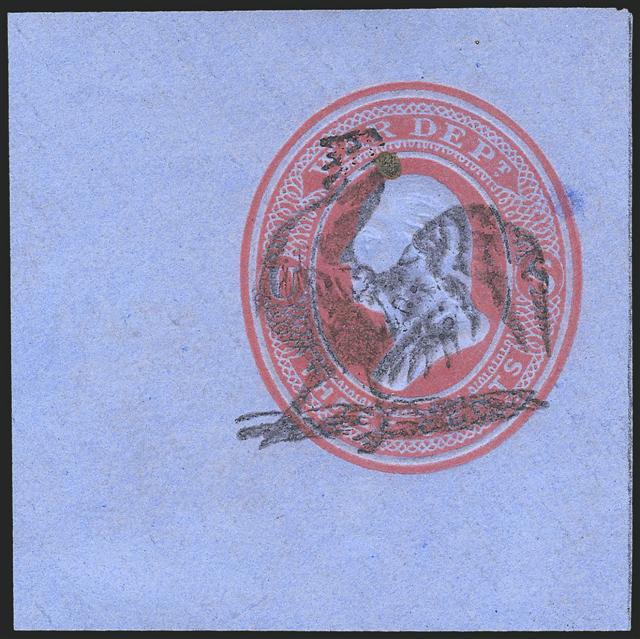
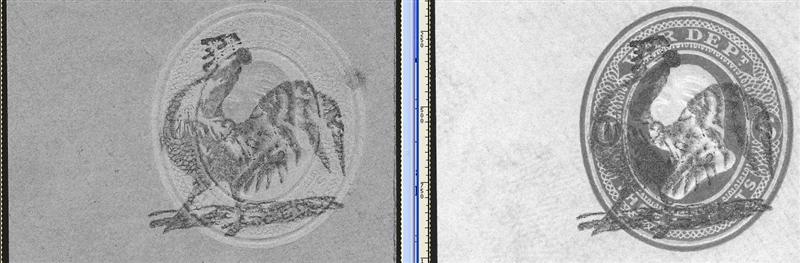
This is a cork strike of a rooster. The envelope is blue and the embossed stamp is red which will cause some problems. Additionally the embossing will still be visible at the end of the process.


1. Open the image in GIMP

2. Decompose the image into monochrome images [colors-components-decompose]

In the decompose box make sure that the color model is RGB and that the decompose to layers is not selected, click OK.
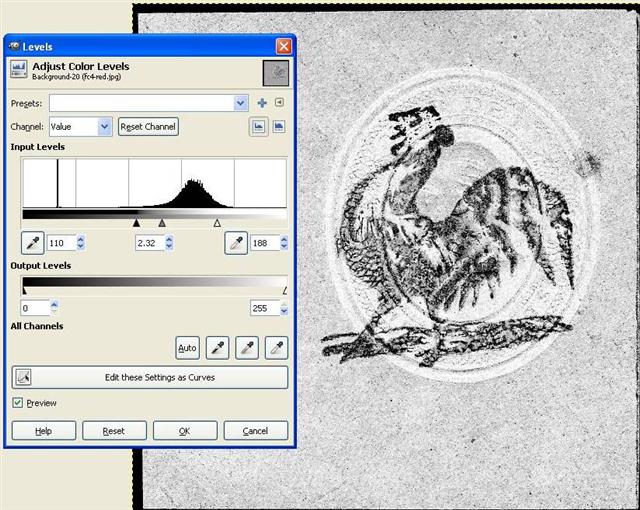
In the screen shot below will notice that on the blue image (right) the envelope is shown as white with the embossing being dark and on the red image (left) the envelope is darker and the embossing is light.


3. Open the brightness/contrast levels window [colors-levels]

Since we are trying to capture the cancel start off by moving the black to the right and the white to the left to get a good image. Move the contrast to balance the output. Fine adjust the 3 triangles to get the best image. Click OK


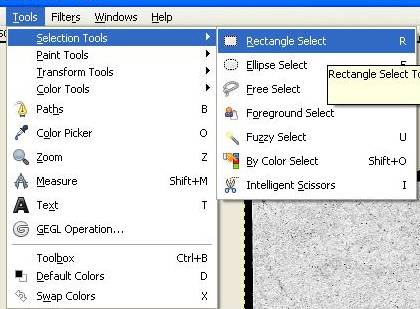
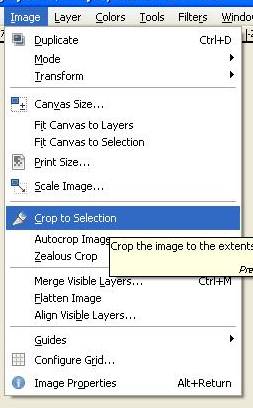
Now we are going to crop the image [tools-selection tools-rectangle select]


To select the rectangle left click first corner, move to second corner and release.


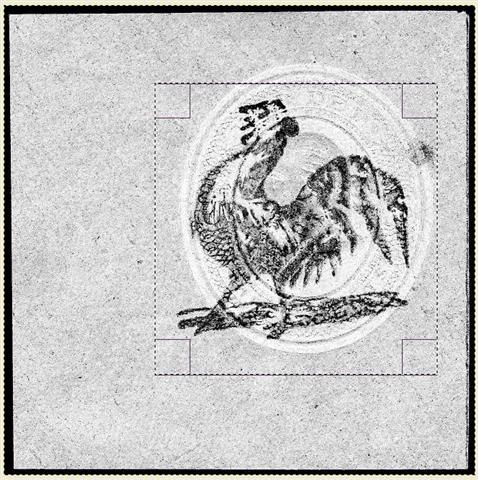
Crop image [image-crop to selection]


Now save the image as a JPG
Send note to Staff  Go to Top of Page
Edited by Russ - 04/25/2011 10:35 pm
Page: of 2 Previous TopicReplies: 26 / Views: 3,037Next Topic  
Next Page
 
To participate in the forum you must log in or register.

Go to Top of Page

Disclaimer: While a tremendous amount of effort goes into ensuring the accuracy of the information contained in this site, Stamp Community assumes no liability for errors. Copyright 2005 - 2026 Stamp Community Family - All rights reserved worldwide. Use of any images or content on this website without prior written permission of Stamp Community or the original lender is strictly prohibited.
Privacy Policy / Terms of Use    Advertise Here
Stamp Community Forum © 2007 - 2026 Stamp Community Forums
It took 0.39 seconds to lick this stamp. Powered By: Snitz Forums 2000 Version 3.4.05