Good question. I had intended on providing a little guide when I had a free moment, and it seems I have a free moment just now.
Quickie Guide to Linking Images Already Uploaded to SCF
Step 1: Locate your image
In most cases you already know which image you would like to post on a separate thread. The SCF search function well for this. If I want to show the image of a cover I know I posted to a thread I created, I do a search for all threads created by me. Since it is a Canal Zone cover (big surprise there) I use "Canal Zone" as my search criteria. I quickly locate my thread among the search results.
It is:
https://goscf.com/t/8669Step 2: Copy Image Location
Once you see the previously uploaded image in the thread you have located, the next step is to right-click on the image with your mouse cursor and select the option "Copy Image Location" in the drop-down menu that appears.
Another way to get the image location is to right-click on the image and choose the "View Image" option from the drop-down menu. Your web browser will then show only the image you selected. The web address now showing in the address bar of your web browser is the image location. Copy the entire address.
Step 3: Paste Image Location
Now it is time for you to go to the thread you are creating or replying to. Paste the copied image location into the thread at the place where you would like the image to appear.
Step 4: Make the image location viewable as an image.
At this point, highlight the entire image location web address as it appears in the thread you are creating/editing, making sure not to leave out any characters.
Once the entire image address is highlighted, click on the button in the above Format Menu that looks like this:

This will place the image location address within a Hypertext Markup Language (better known as HTML) tag that tells your web browser to display the image at the address indicated.
Your image location will look like this (except where you see a parenthesis, there will be a bracket):
(img)https://www.stampcommunity.org/uplo...d1.jpg(/img)
Step 5: Preview your post to ensure the image appears where you expect it to. You are done!
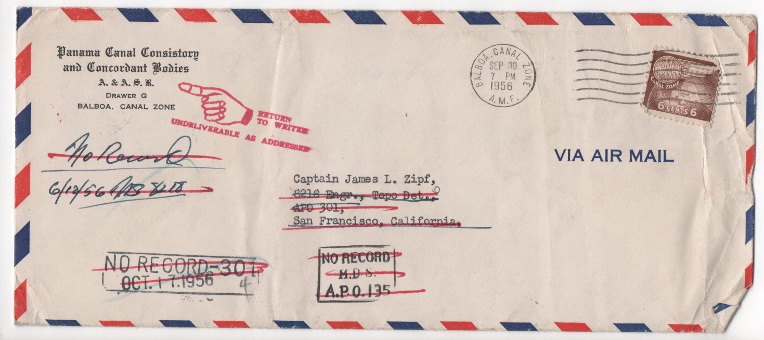





 Posted 07/22/2011 11:11 am


 Participate and enjoy!


