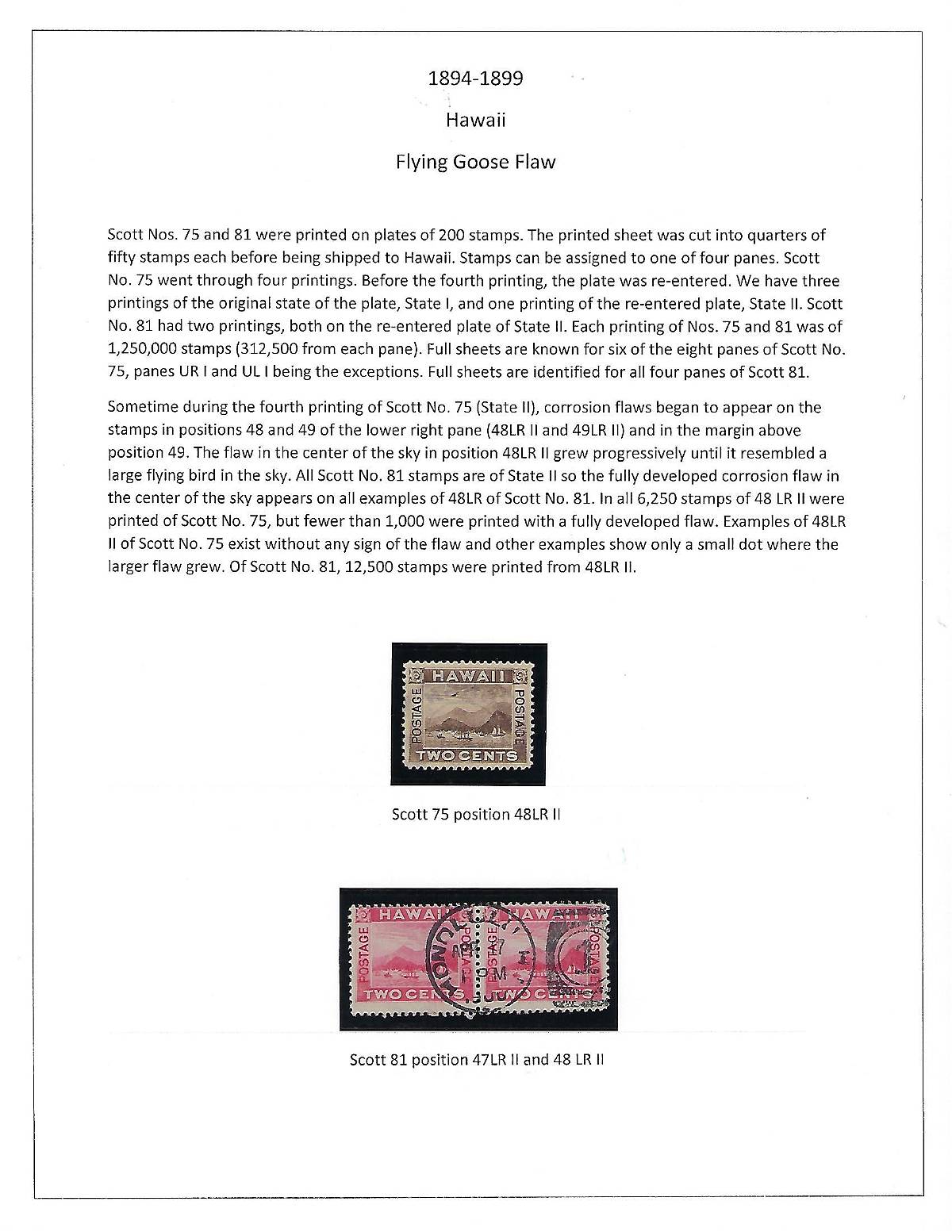
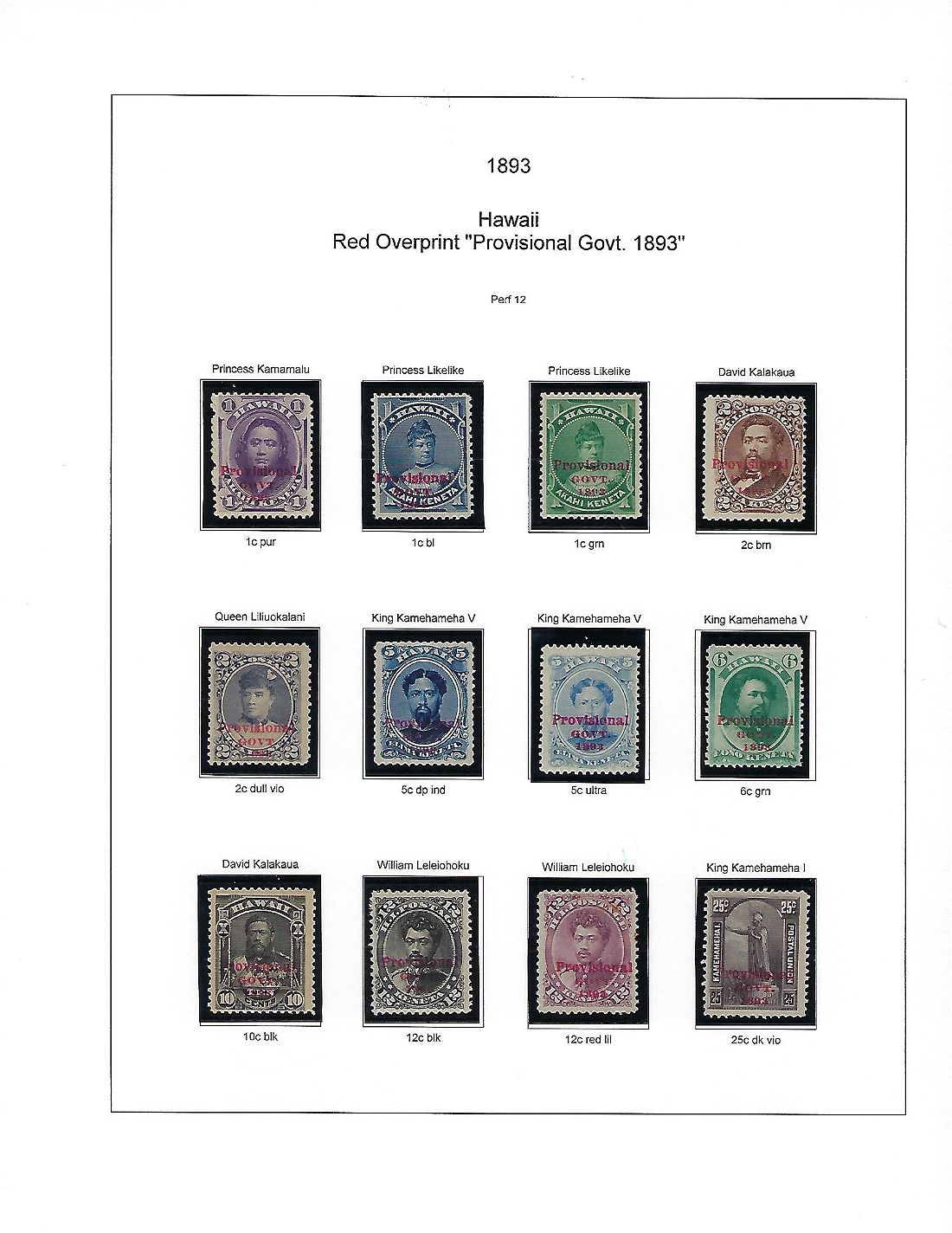
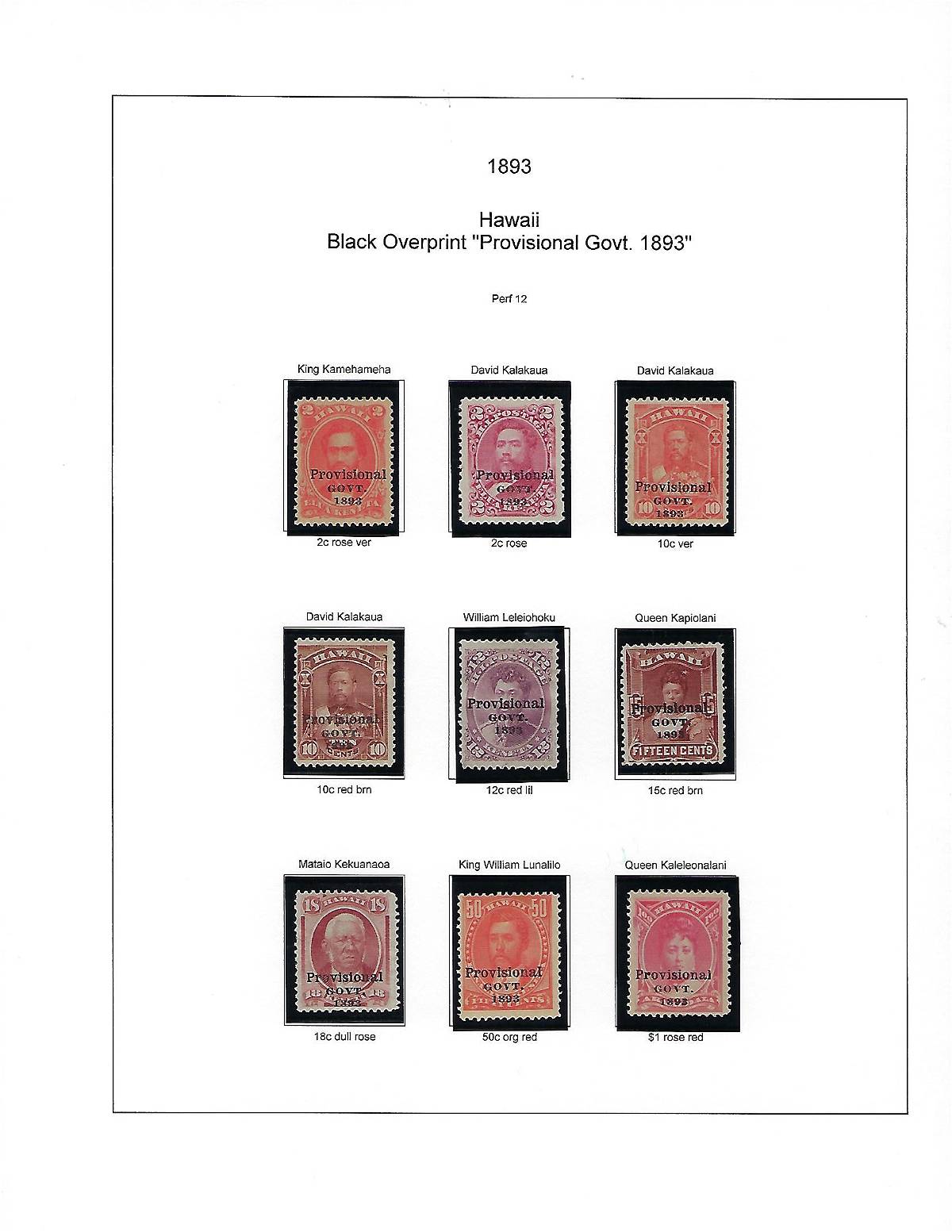
Hey, I would like to see your Hawaii collection too, and I'm sorry you are having problem scanning your pages.
I have both a flatbed scanner, operated by VueScan thru my lap top, and a 3 in 1 copier/fax/scanner operated thru the device's touch screen. For both, on start up, I enter a menu where you tell the device what you want it to do. In this menu you should be able to select the file type used to save the scan. This will be a sub-part of the same menu where you select the scan resolution and where you want the scan saved in your file system.
The default file type setting of both interfaces was .pdf, so I get how you your scans have turned out as .pdf's. Some photo programs can convert file types, too, although it will probably be less time consuming to change the file type setting on your scanner and rescan.
Hope this helps--poke around in your scan set up menu.
Burnside
This is what the VueScan start up menu set up looks like. In VueScan you have different treatments for "Preview" and "Scan". I do preview at 200 dpi, as shown here (Preview Button colored Green), crop the preview, and do the actual scan at the appropriate resolution for the document, usually 600 dpi or higher for stamps. Notice that .jpeg is selected as file type. The drop down menu allows you to change the file type.





 Posted 02/26/2020 07:43 am