For those who are interested, here's a fix. It requires the use of browser extensions. I can't vouch for the reliability, security, etc., of the extensions, so the usual caveats apply.
Chromium-based browsers (Chrome, Chromium, Brave, Opera, Vivaldi, Edge?)I haven't tested this on all browsers. Some extensions don't run well on all the Chromium-based browsers due to minor differences in the browsers. I have tested it on Brave, as that's what I use.
1. In your browser, go to the
this page in the Chrome Web Store
2. Click the button to install the "User CSS" extension
3. There should now be an icon somewhere in the bar of your browser. The location may vary by browser. In Chrome and Brave, it is initially visible under the puzzle piece icon:
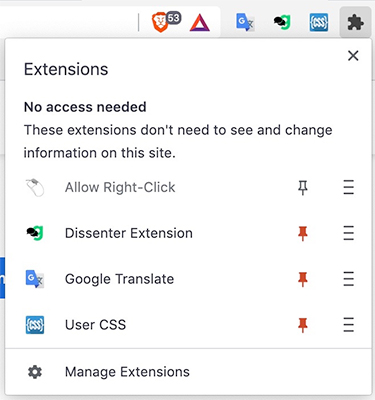
To pin it to the bar without having to go to the puzzle piece every time, click the pin icon next to the User CSS icon.
4. Go to an
ebay category listing
5. Click the User CSS icon in the browser bar. You should get a large white area at the right of your browser window.
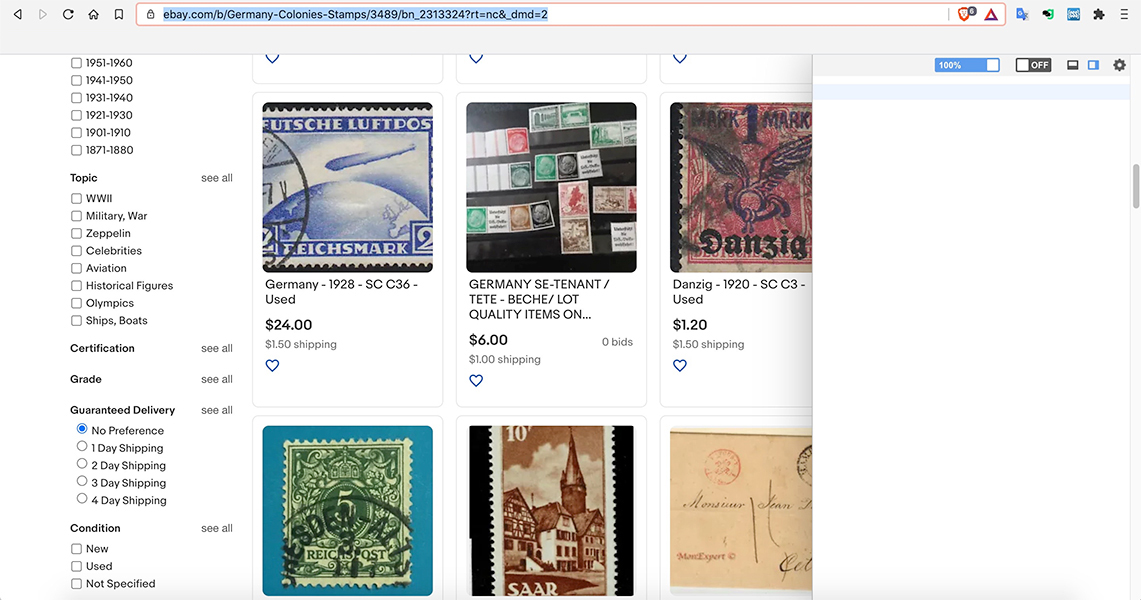
6. Paste this code in the white window.
.s-item__image-wrapper--crop .s-item__image-img {
  max-width: 100%;
  max-height: 100%;
  width: auto;
  height: auto;
}

.s-item__image-wrapper--crop.s-item__image-wrapper--crop-top .s-item__image-img {
  max-width: 100%;
  max-height: 100%;
  width: auto;
  height: auto;
}

.s-item__image-helper {
  height: 100%;
}
7. Tick the slider at the top of the white box to "On"
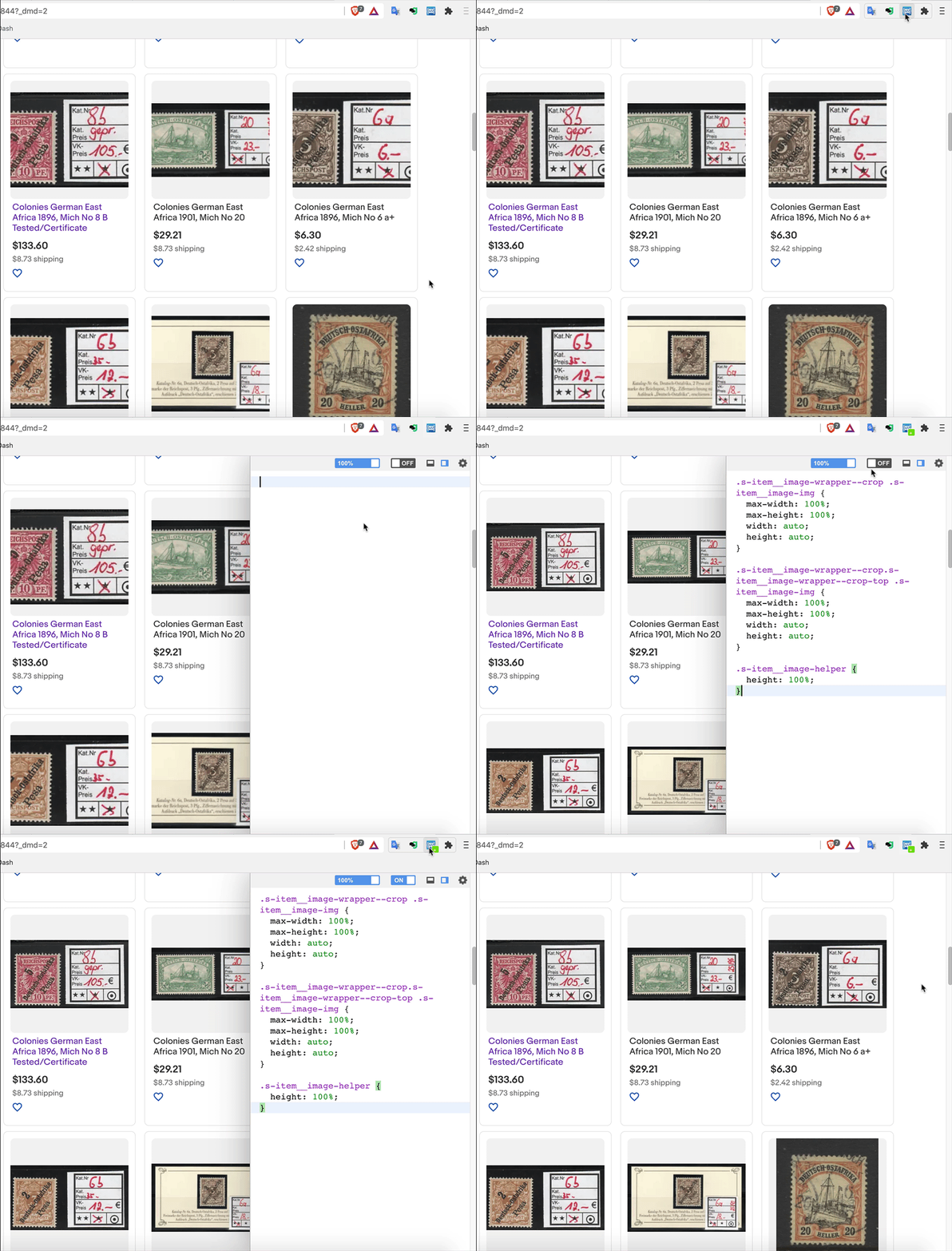
The code is injected per domain. So, if you enter it on an
ebay.com page, it will apply to all
ebay.com pages. If you then want it to apply to
ebay.co.uk,
ebay.de, etc., you'll need to repeat steps 4-7 above on a listing from each of those sites.
Firefox1. Go to
this page in the Firefox add-ons store.
2. Click the button to install the extension.
3. There should now be a needle icon in the browser bar.
4. Go to an
ebay category listing and click the needle icon in the browser bar. You should see this window.
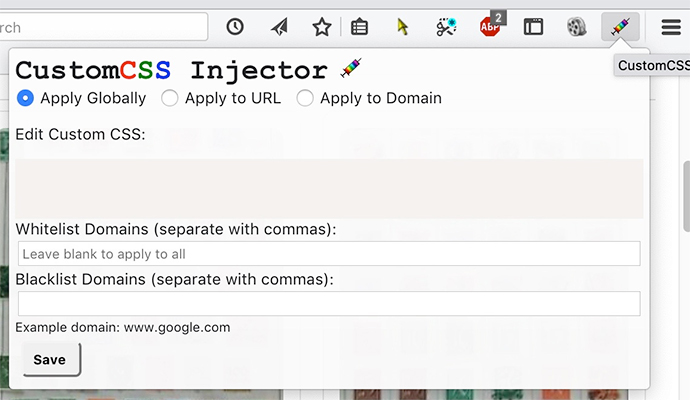
5. Paste this code in the gray area entitled "Edit Custom CSS"
.s-item__image-wrapper--crop .s-item__image-img {
  max-width: 100%;
  max-height: 100%;
  width: auto;
  height: auto;
}

.s-item__image-wrapper--crop.s-item__image-wrapper--crop-top .s-item__image-img {
  max-width: 100%;
  max-height: 100%;
  width: auto;
  height: auto;
}

.s-item__image-helper {
  height: 100%;
}
6. Click the "Apply to Domain" button and click "Save"
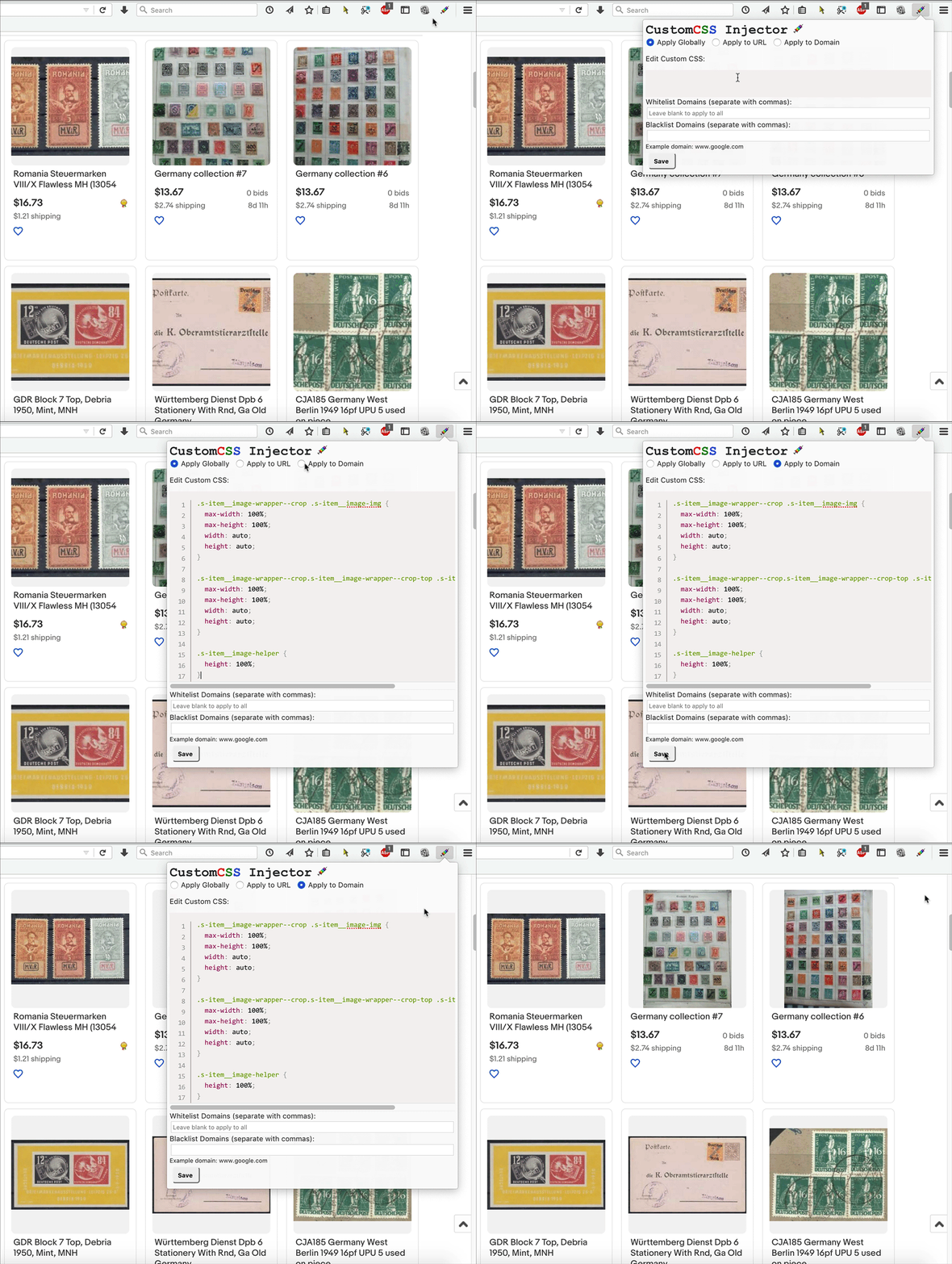
The code is injected per domain. So, if you enter it on an
ebay.com page, it will apply to all
ebay.com pages. If you then want it to apply to
ebay.co.uk,
ebay.de, etc., you'll need to repeat steps 4-6 above on a listing from each of those sites.
SafariImplementing this solution on Safari requires the use of a paid extension, Cascadea ($2.99 on the App Store).
1. Install Cascadea from the App Store
2. Follow the prompts to enable it in Safari
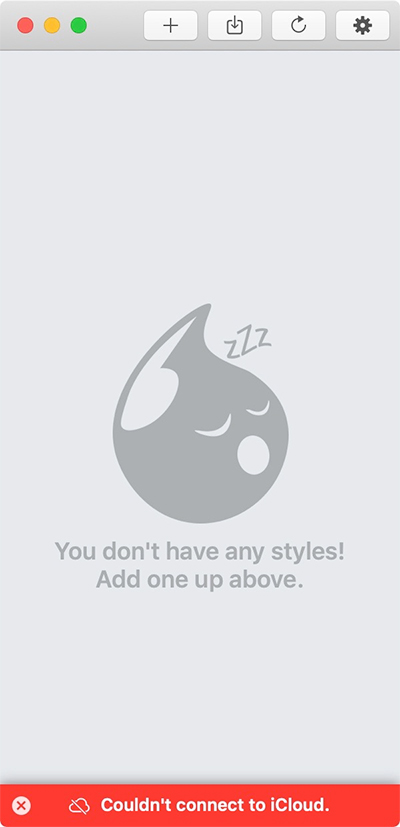
3. Once it's enabled, you'll see a window like this:
4. Click the plus sign to add a style
5. Give it a name (ex.,
ebay Photos), enter "ebay.com" in the domain box, and click "Create"
6. It will open a window (if the window has green text, delete the text). Paste in this code:
.s-item__image-wrapper--crop .s-item__image-img {
  max-width: 100%;
  max-height: 100%;
  width: auto;
  height: auto;
}

.s-item__image-wrapper--crop.s-item__image-wrapper--crop-top .s-item__image-img {
  max-width: 100%;
  max-height: 100%;
  width: auto;
  height: auto;
}

.s-item__image-helper {
  height: 100%;
}
7. Close the window, saying yes to save it.
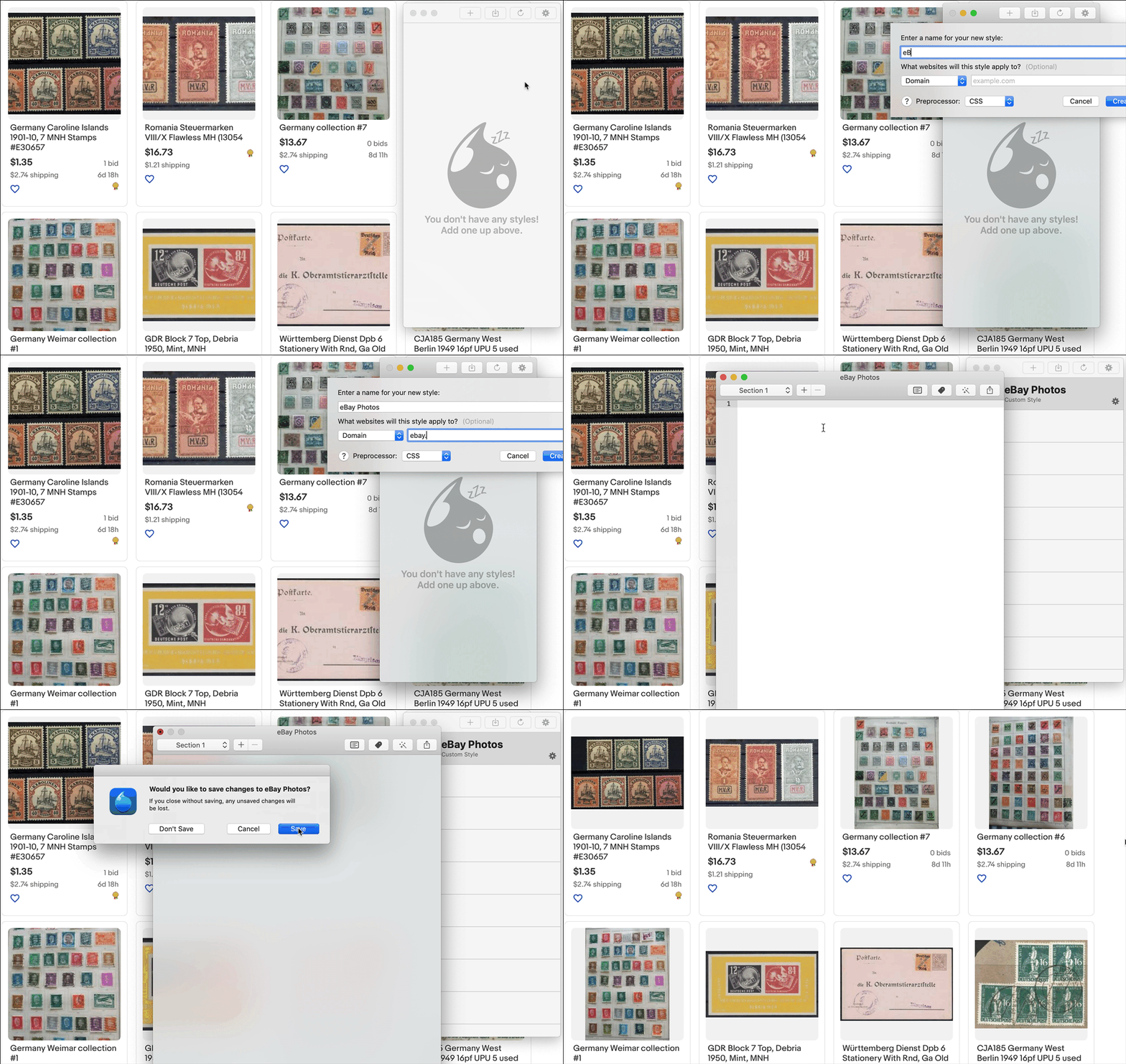
The code is injected per domain. So, if you enter "eBay.com" as the domain, it will apply to all
ebay.com pages. If you then want it to apply to
ebay.co.uk,
ebay.de, etc., you'll need to repeat steps 5-8 above for each domain.
If you run into any problems, just drop a note and I'll see if I can help.





 Posted 01/14/2021 8:13 pm




 (Just kidding, of course this is not his fault.) It was already nearly impossible to support the complexity of browser/operating system/version combinations; having these kinds of plugins makes it very easy for website owners to just give up on supporting anyone.