| Author |
 Replies: 59 / Views: 9,745 Replies: 59 / Views: 9,745 |
|
Pillar Of The Community
Canada
5821 Posts |
|
|
Lately I've noticed that the upper half of the stamps scanned are slightly darker (greyer ?) than the bottom half. I wonder if anyone else has noticed something similar while they are scanning and perhaps have a solution. I thought at first it might be the bulb but if so why is only the upper part dimmer not the whole image. Below are 3 examples scanned various ways always using 800dpi. It's an Epson Perfection 4490 Photo I've had for a couple of years. First one is scanned on a hagnar, lid closed Then on glass, lid open. Then on glass, lid open.  Last one is on glass with lid closed. Last one is on glass with lid closed. For some reason all three lid in different sizes here even though I trimmed them exactly the same way before scanning.  *** Moved by Staff to a more appropriate forum. *** *** Moved by Staff to a more appropriate forum. *** |
|
Send note to Staff
|
|
|
|
|
Moderator

United States
4788 Posts |
|
|
I know it's over-simplistic, but it looks almost as if the stamp lid isn't pressing the stamp completely and evenly against the glass.
? |
Send note to Staff 
|
|
|
Pillar Of The Community
United Kingdom
1361 Posts |
|
|
That is also what I thought.
I put the stamp on the glass and then a sheet of black card with either a book or the weight of the lid to press it all down flat. |
|
Send note to Staff
|
|
|
Pillar Of The Community
750 Posts |
|
|
I agree looks like the stamp is not pressed flat that could affect the color slightly as the light is refracted thru the glass.
if your in an ambisious mood, you also may want to do some sample tests to see if your mounts (plastic covers) are affecting the scan color as they too may be refracting the scannerlight somewhat as well. I'd try a few different stamps in and out of mount covers to see.
however I bet like Kirk and Anthony suggested a mid-weight book on the cover to set it flat, just not to heavy to break anything. will be your magic bullet. |
|
Send note to Staff
|
|
|
Rest in Peace
Canada
5701 Posts |
|
|
Yeh, I agree. The flatter scans 1 and 3 look best, while the darkest top is on the curly middle image. |
|
Send note to Staff
|
|
|
|
Pillar Of The Community
Canada
5821 Posts |
|
|
Thanks for all your suggestions but I don't think it has anything to do with how tight the stamp is against the glass.
I placed stamps in 3 rows and whether it was stamps from the top row near the edge of the scanner or from the middle row or from the bottom row near the middle of the scanner, it's all the same.
Actually the one on glass with the lid closed turned out best but it's a real chore to line them up straight on the glass and I prefer them with a black background.
I went on the Epson website but no help there.
Anyway thanks for your input. |
|
Send note to Staff
|
|
|
Bedrock Of The Community
Australia
38679 Posts |
|
|
I have used the Epson perfection for 6 years,
on the very rare occaision it plays up
and decides to set its own parameters, I find a quick fix
is to "reset defaults", that fixes it immediately.
The first scanner I had (epson) lasted about 4 years,
then suddenly I began getting a moire line through odd
places in the image. I tried everything including
messing around with the tractor feed (not recommended)
nothing worked, so I purchased a new machine $300.
|
|
Send note to Staff
|
|
|
Bedrock Of The Community
Australia
38679 Posts |
|
|
BTW. instead of placing a black card ontop of the stamps
to get a black background each time, cut the card to fit
and attach it to your scanner lid with blu tack.
|
|
Send note to Staff
|
|
|
Pillar Of The Community
Canada
5821 Posts |
|
|
Thanks Rod I will try with blue.
It's an excellent scanner which I originally bought primarily so I could convert all the old negatives into pics. It worked great for that purpose and only later I started scanning stamps. |
|
Send note to Staff
|
|
|
Pillar Of The Community
United States
527 Posts |
|
|
At least you can scan and post, I am having such a hard time trying to upload scans, I could pull my hair out, well the last 4 or 5 I have left, anybody want to hold my hand and walk me through this? I have tried the Infanview, and the Microsoft stuff, Olympus, but very little luck. A few times it has worked most of the time it does not,I can upload from my camera but not from the scanner. Pixels, size, resolution, lock this adjust this, I am lost. |
|
Send note to Staff
|
|
|
Pillar Of The Community
Canada
5821 Posts |
|
|
Bedrock Of The Community
Australia
38679 Posts |
|
|
Quote:
anybody want to hold my hand and walk me through this? The first thing Fred is to allocate a dedicated folder for your images, you can click and slide/move them later. Make a folder or sub folder say at C:\My Documents\Fredscans Then have your scanner automatically dump your scans to this folder each time it creates an image. see how you go. My example: (the little box below "close" with the folder is the folder save to button on an epson perfection) click that, and this what you get 1. saves to C:\My Pictures 2, saves a a JPG image 3. automatically allocates a sequential file number 4. gives me three other options which I have left blank 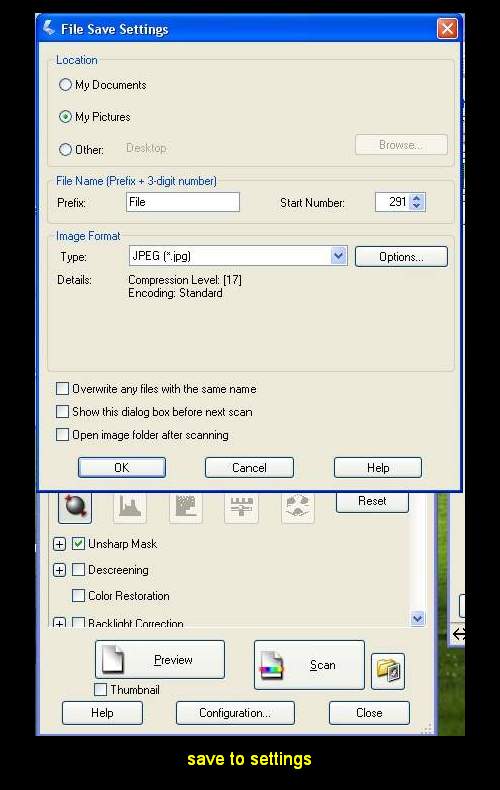 |
|
Send note to Staff
|
| Edited by rod222 - 11/05/2010 10:57 pm |
|
|
Rest in Peace
Canada
5701 Posts |
|
|
Pillar Of The Community
United States
4106 Posts |
|
|
first the images.. they are different sizes because they are all different images. none are the same. so the file size will reflect that.
Fred.. there are a number of programs out there to manipulate images.
if you can use your scanner driver to scan them, then google paint.net it is a free image software and it is very good for what it does.. I use it all the time when I don't have time to wait for other software programs to load.
and if you really need a walk through, perhaps I can set up a remote session (webex) and talk you through it. Webex gives me the ability to see your desktop.
also, clean the scanner glass folks.. finger oils get on them all the time. use a foam glass cleaner. |
|
Send note to Staff
|
|
|
Pillar Of The Community
Canada
5821 Posts |
|
|
Rod you're a bloody genius. I reset all settings as you advised and also change the Auto Exposure Type from Photo to Document and I get this.  Problem fixed. Thank you Rod (SCF's resident geek) |
|
Send note to Staff
|
|
|
Rest in Peace
Canada
5701 Posts |
|
|
Replies: 59 / Views: 9,745 |
|




 Posted 11/05/2010 3:31 pm


