Rod,
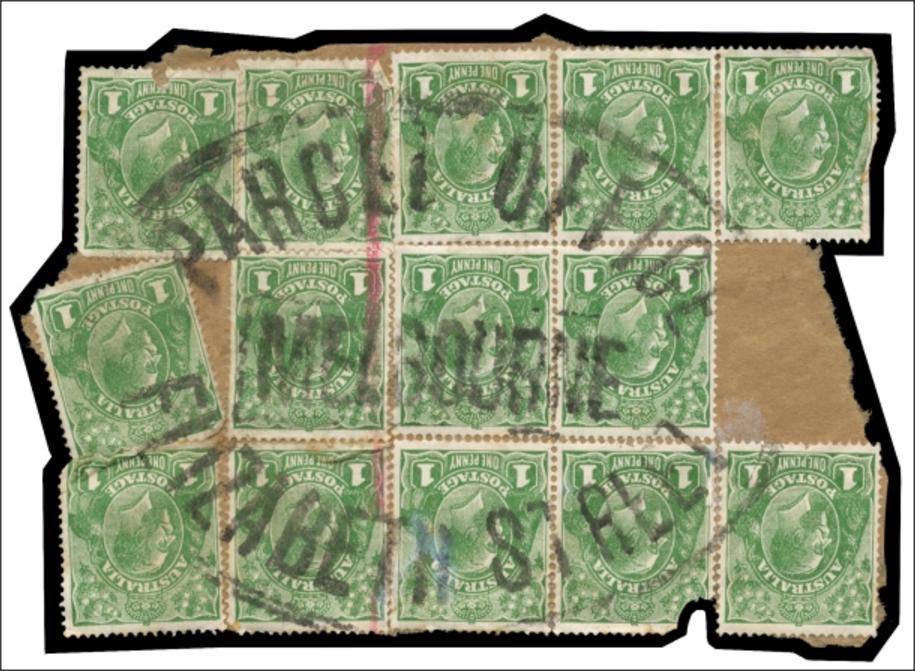
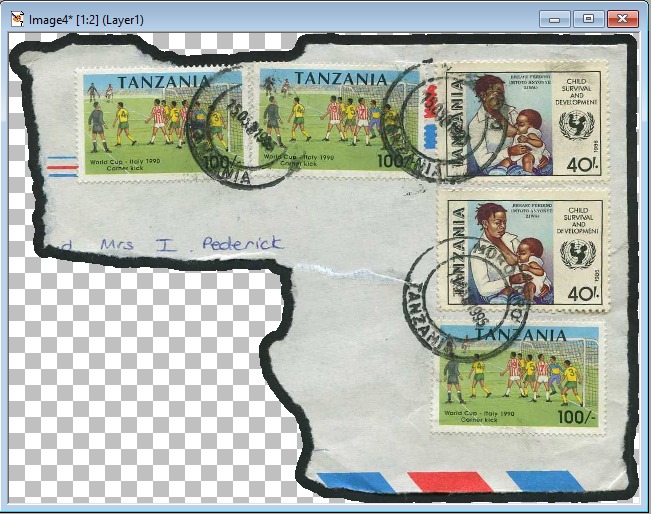
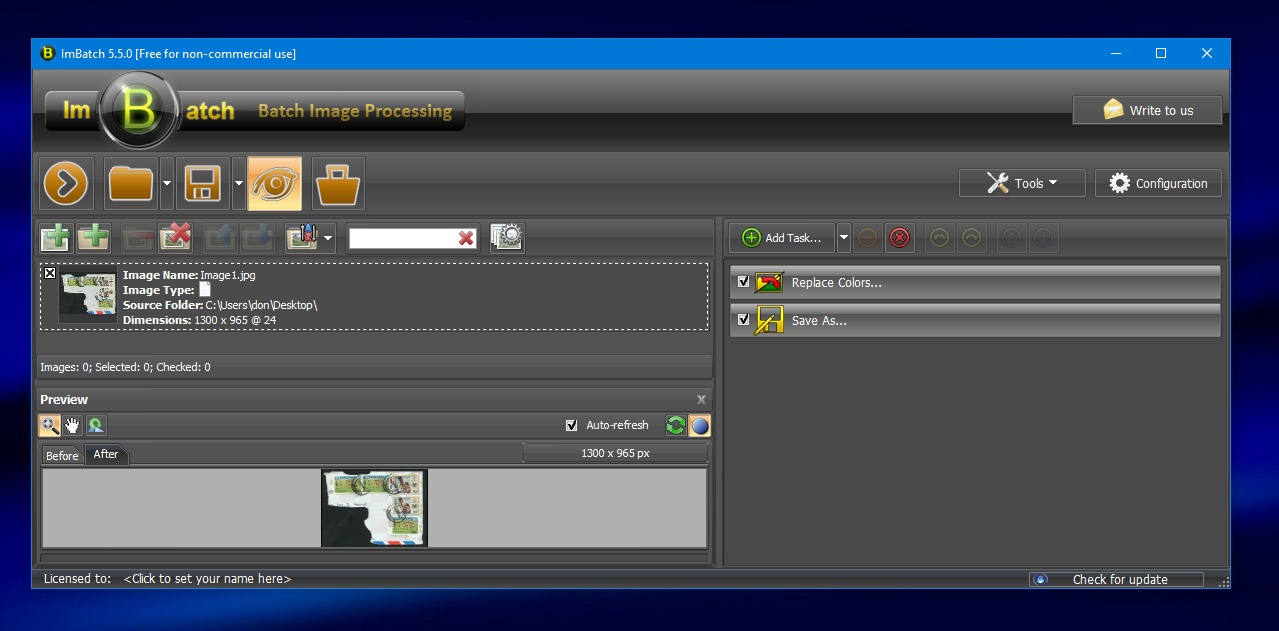
AFAIK, there's no way to get the angular look you're going for without doing at least some of it manually. Any photo program is likely going to simply add a consistent amount of space round the edges, and as you can see from your angular version, the border isn't consistent in width around the entire edge. I'll experiment and see if I can find out how to get the result you're looking for.
If you'd like to duplicate what Don showed, here's how to do it in GIMP. There may be easier options, but as I'm not on Windows, I'm not entirely sure what's out there that would work on your system.
You can download GIMP
here.
Here's a very quick tutorial. If you get stuck, just ask.
1. Open your image in GIMP.

2. Select the "Fuzzy Select Tool" -- top row, fourth from left or keyboard "U". This tool allows you to select a contiguous area by color.
Once you select the tool, you'll see an option lower down for "Threshold". This number controls how precise the tool is. A low number will select only the exact color you click. A larger number will broaden the selection. For this example I used a Threshold of around 80.
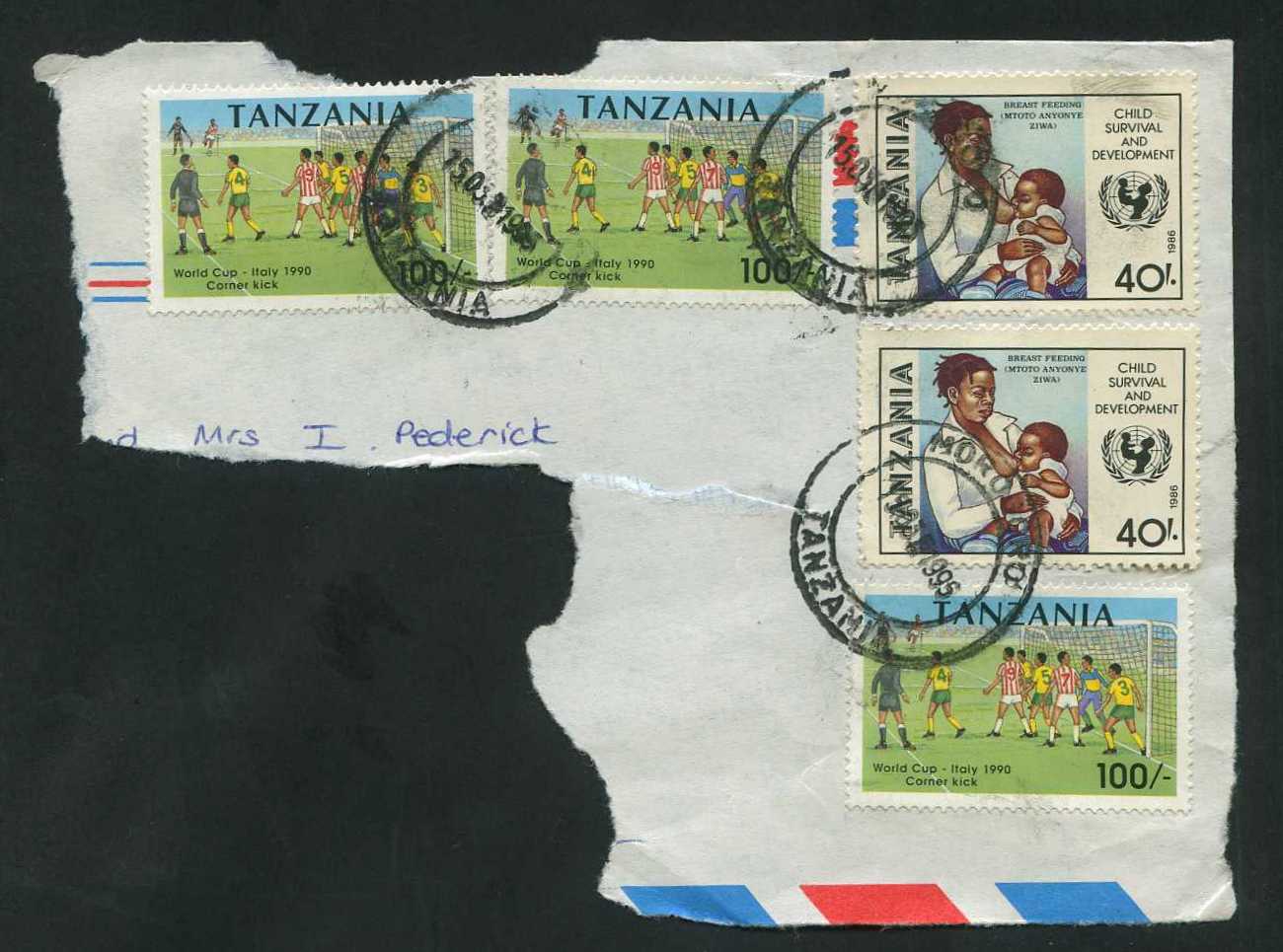
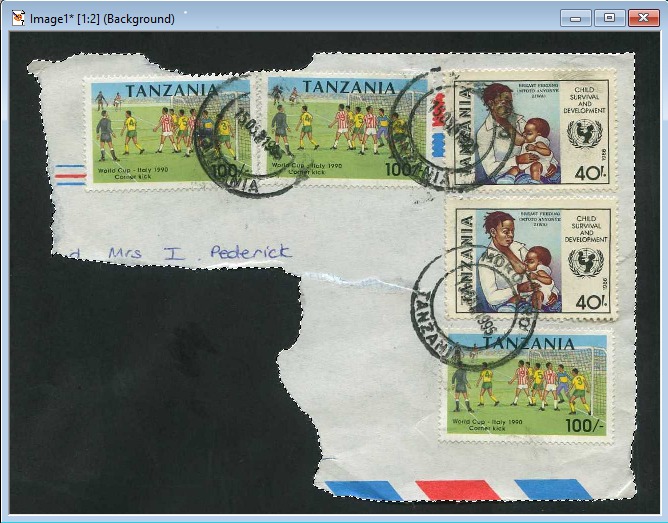
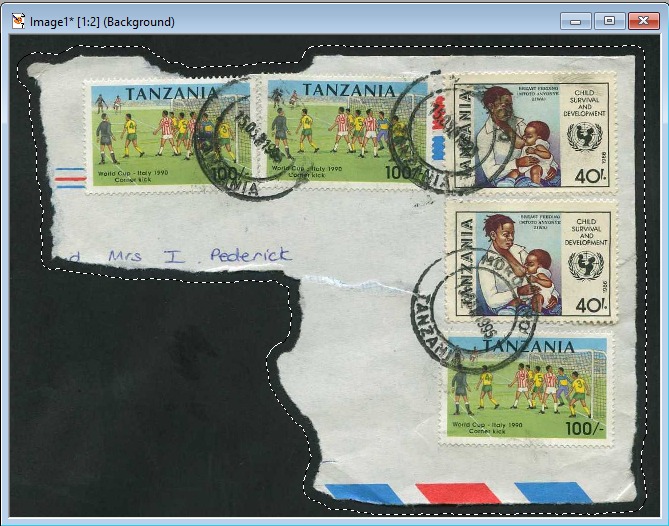
3. Once you have the Fuzzy Select Tool active, click on the black background. It should select everything except the stamp fragment. You should now see a faint dotted line around the background showing that it's selected.
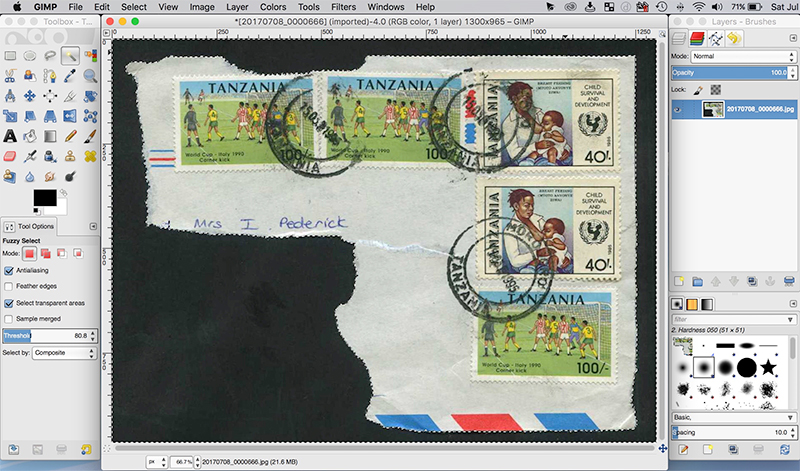
4. Now you want to invert the selection so the stamp fragment is selected instead of the background. To do this, go to the toolbar and click "Select", "Invert".
The dotted line should now surround the stamp fragment only (though it may be difficult to tell a difference from the pervious selection).
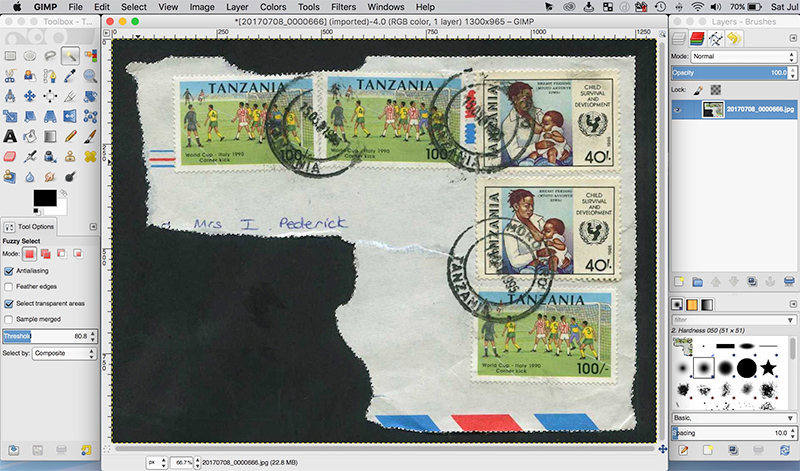
5. Now you want to expand the selection. To do this, choose "Select", "Grow" from the toolbar. A small window will open giving you an option to select the grow amount and the units to use.

6. Once that's done, you should have a selection that is just your fragment, plus whatever amount you told it to grow.
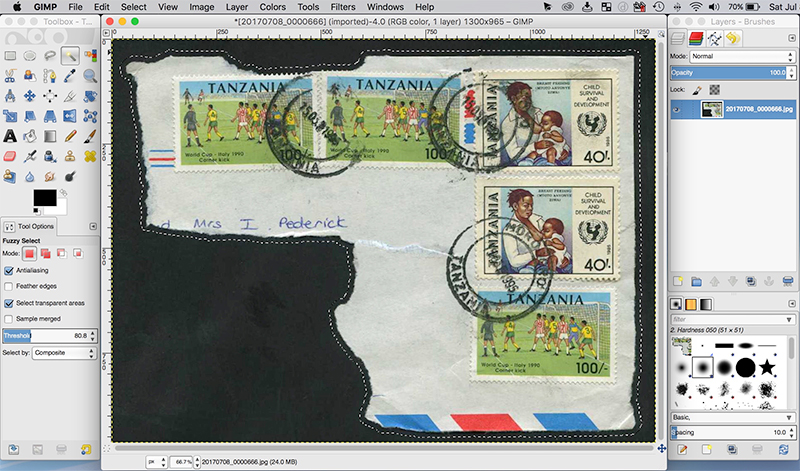
7. Copy and paste this into a new image, or into whatever document you'd like. If you paste it into a new image in GIMP, to save it in another format (jpg, gif, etc.), select "Export As..." from the "File" menu.





 Posted 07/08/2017 10:31 am